Meeting Room AV User Guide 2
Connection Guide when using the Audio and Visual equipment:
1. Display Screen.
Use the remote control on the desk if the screen is off/in standby mode.
Ensure that the display screen is turned on and the input channel is set to HDMI 1, 2 or 3.
Please see troubleshooting tips and images at the end of this guide.
2. Connecting your laptop to present to the display screen.
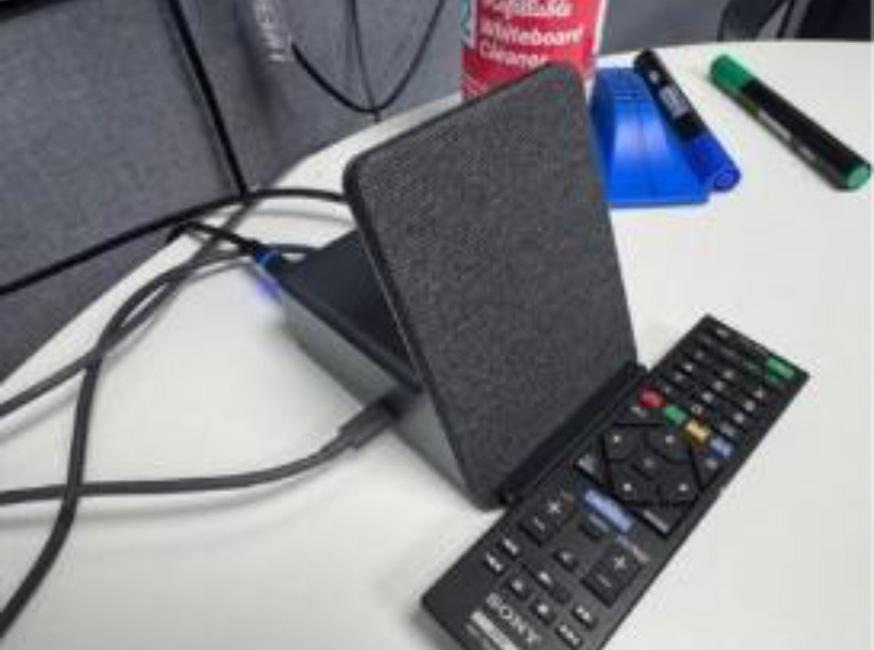
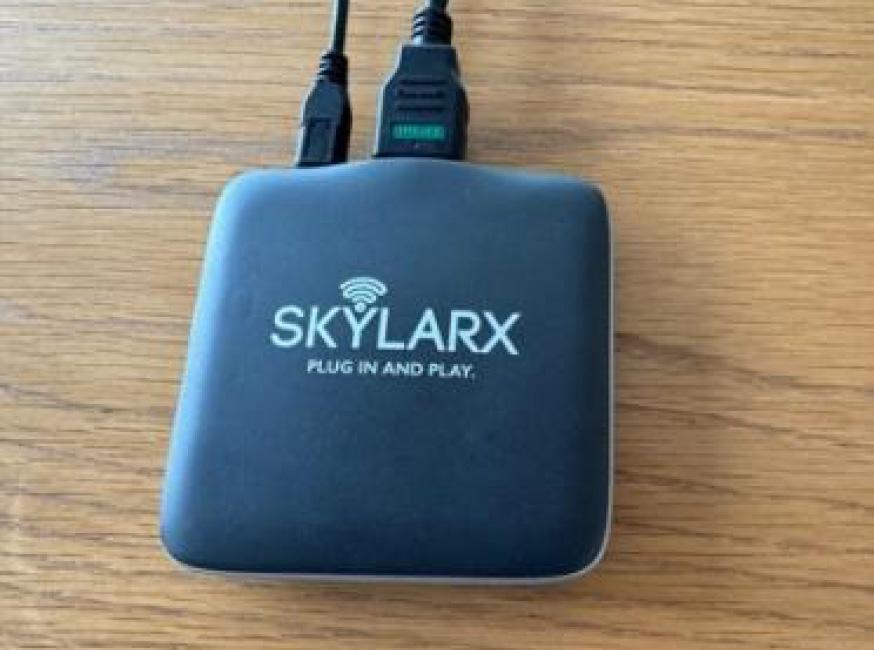
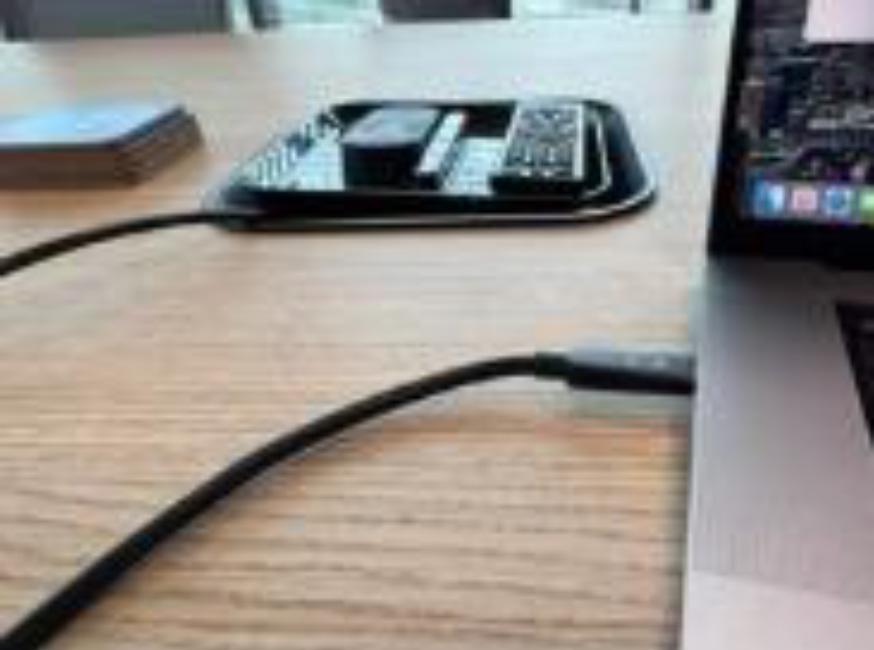
Connect your laptop to the dock or transmitter located on the desk (pictured below) using the USB C cable provided.
For some meeting room AV equipment, you may need to connect both the HDMI cable and the USB C or USB A cable to your laptop, both cables will be available on the desk if so.



3. Confirm connection to the display screen
Confirm any connection prompts that may appear on your laptop screen.
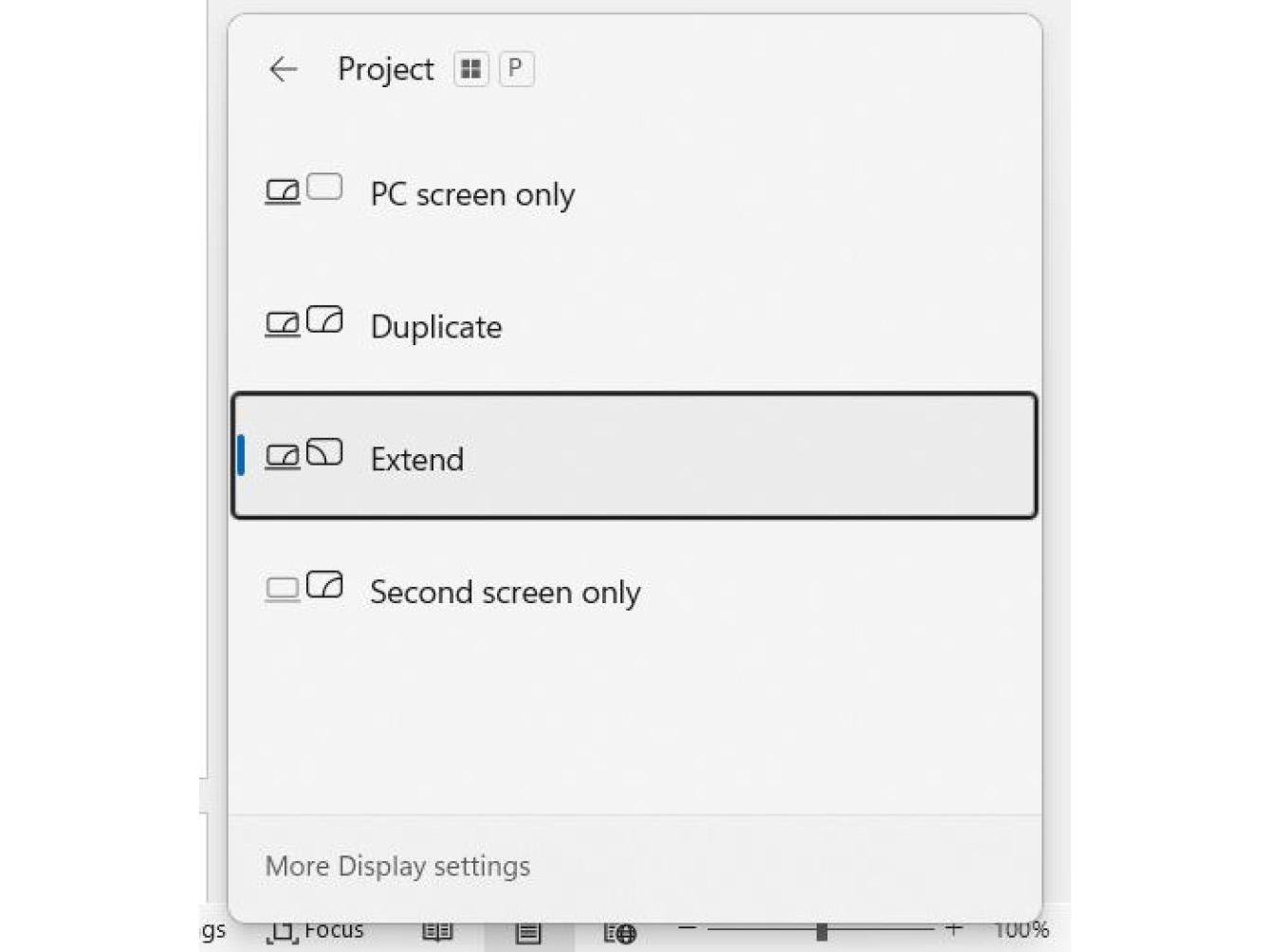
Check that your laptop screen appears on the display screen. If not, check your laptop is set to present to a secondary display by holding down the Windows key on your keyboard and the letter ‘P’, this will provide the below menu option to present, use either ‘Duplicate’ or ‘Extend’ to utilise the multi-screen option.
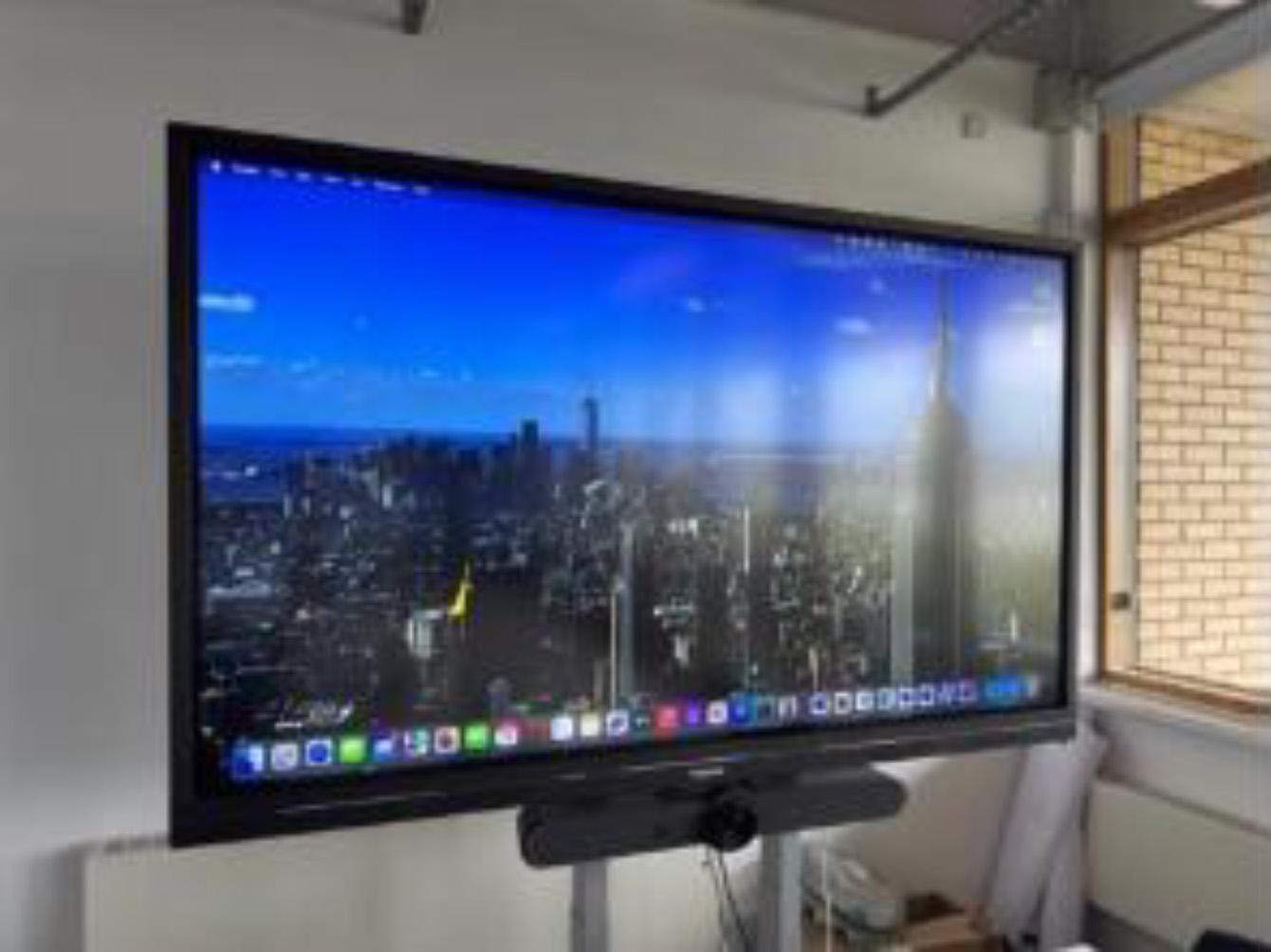
If your laptop screen does not appear on the display screen, retrace steps 1, 2 and 3.
4. Testing Audio and Visual Teams conference call.
Start a Teams test call to ensure your laptop connects to the AV camera and sound bar next to the display screen.
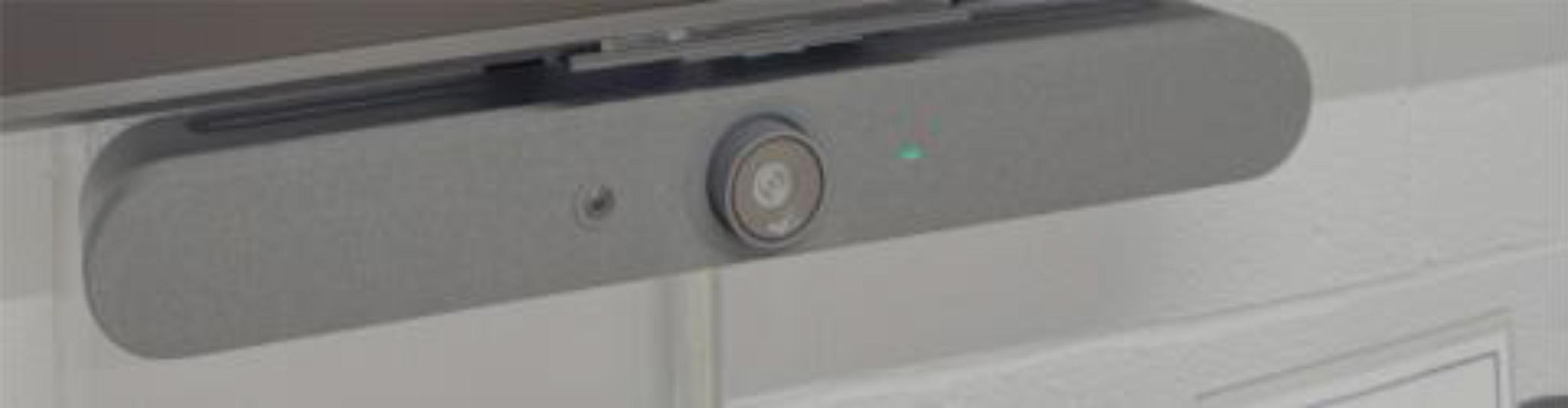
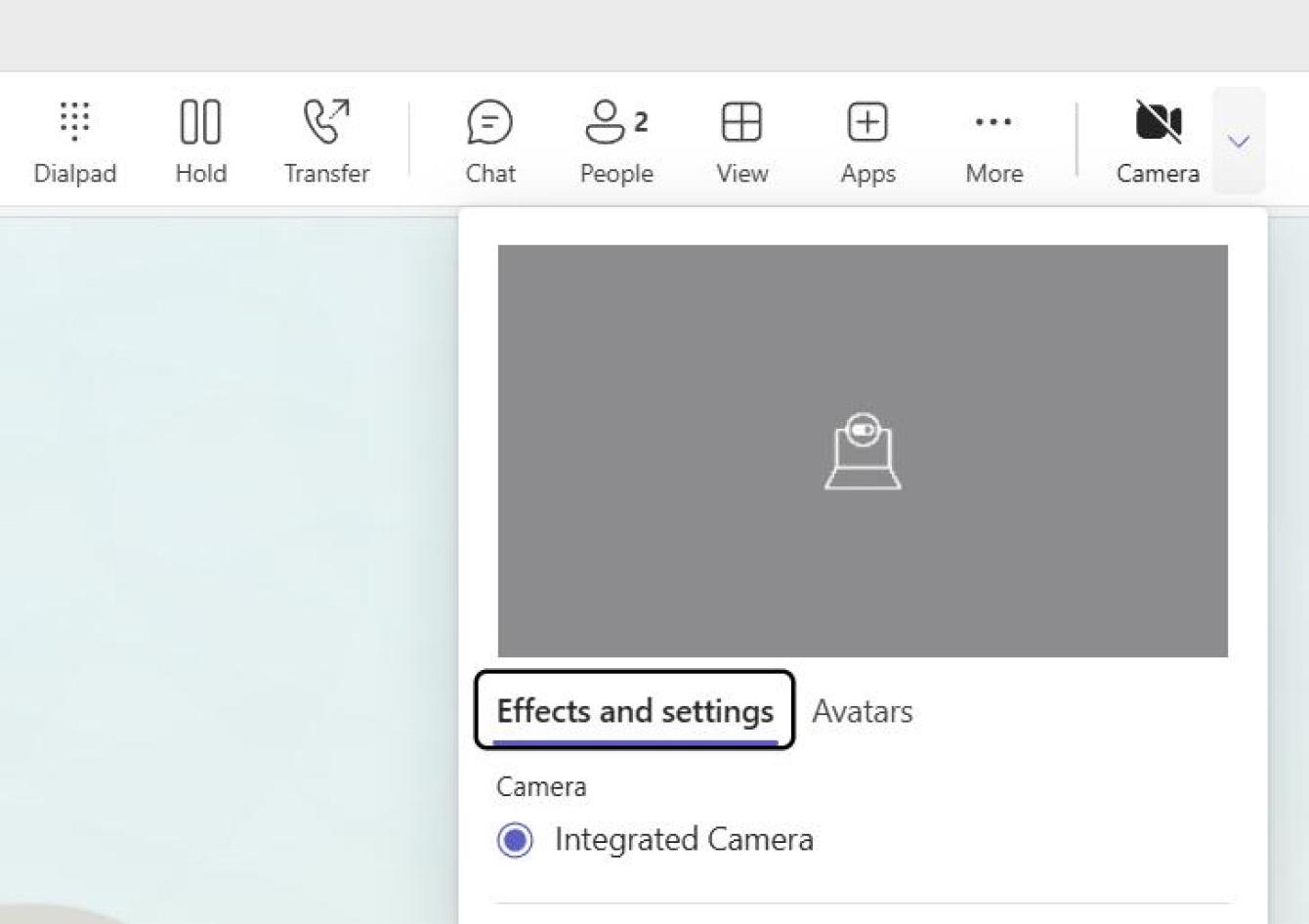
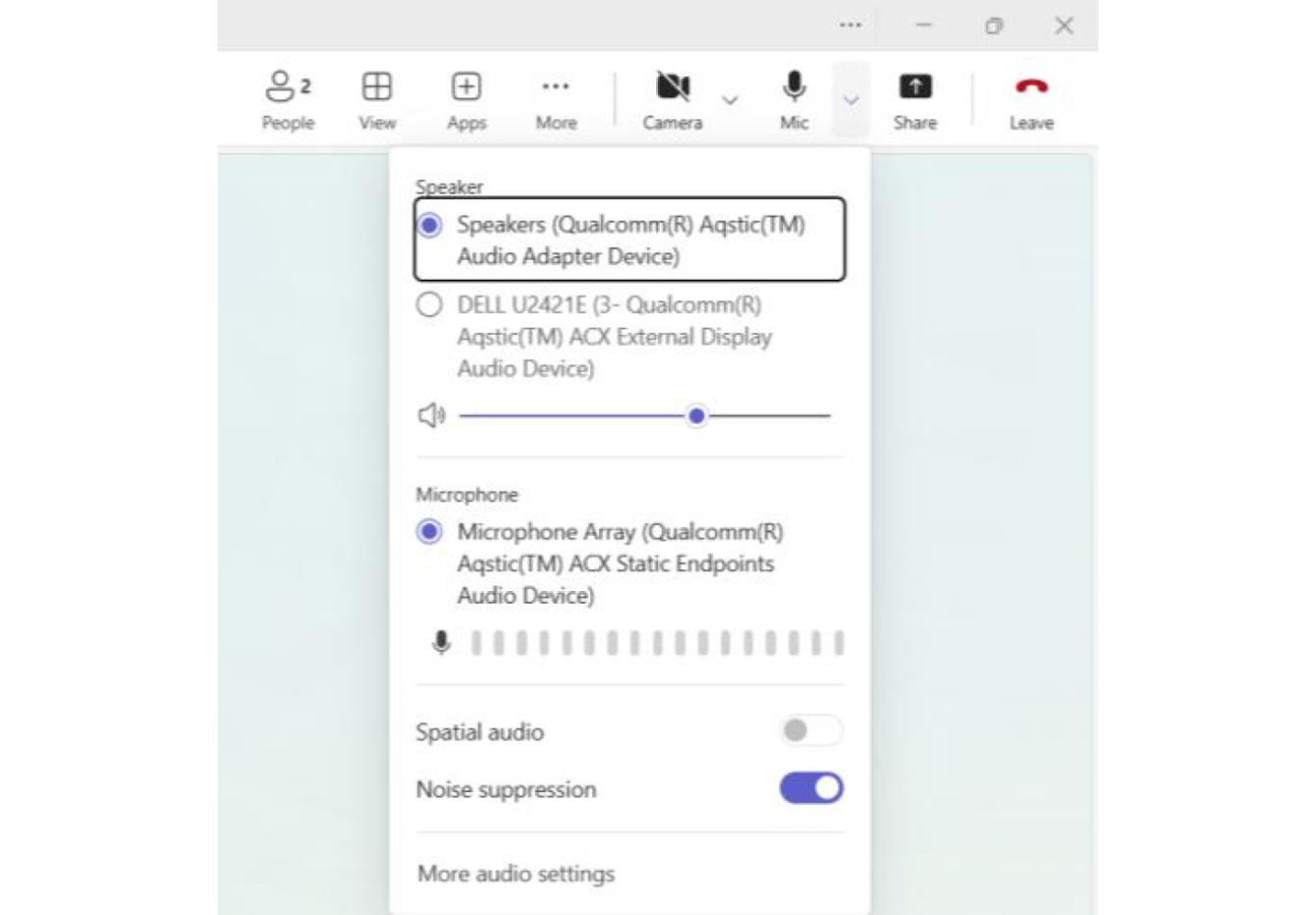
If you find the camera and or audio/microphone is through your laptop and not the AV, within a Teams call, select the corresponding options for Camera and Mic and change the settings associated to the equipment, as pictured below.
Troubleshooting Tips:
Problem? | Solution |
|---|---|
No Display? | Check that the display is switched on and not in standby. Press the red standby button on the remote control
|
Cannot connect to AV Equipment? | Try to power cycle the USB dock, by removing and reinserting the power cable which has the blue light.
Or Try unplugging and reinserting the HDMI cable into your computer. |
Meeting Room Audio or Visual issues? | Call the service desk and let us know so that we can dispatch an engineer to site for further assistance. |
Need Some Help? | |
Select “IT Service Desk” from your laptop Start Menu Or Call 01782916851 (scan the QR code below to save this number) | |
| |
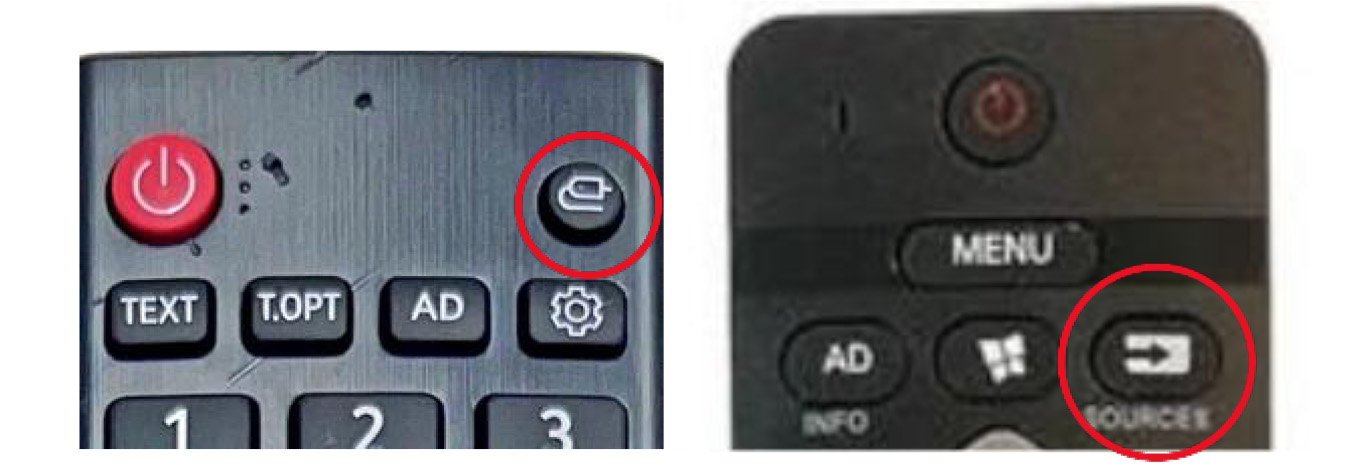 Check that the HDMI 1, 2 or 3 input is selected. Press the INPUT button until the display appears.
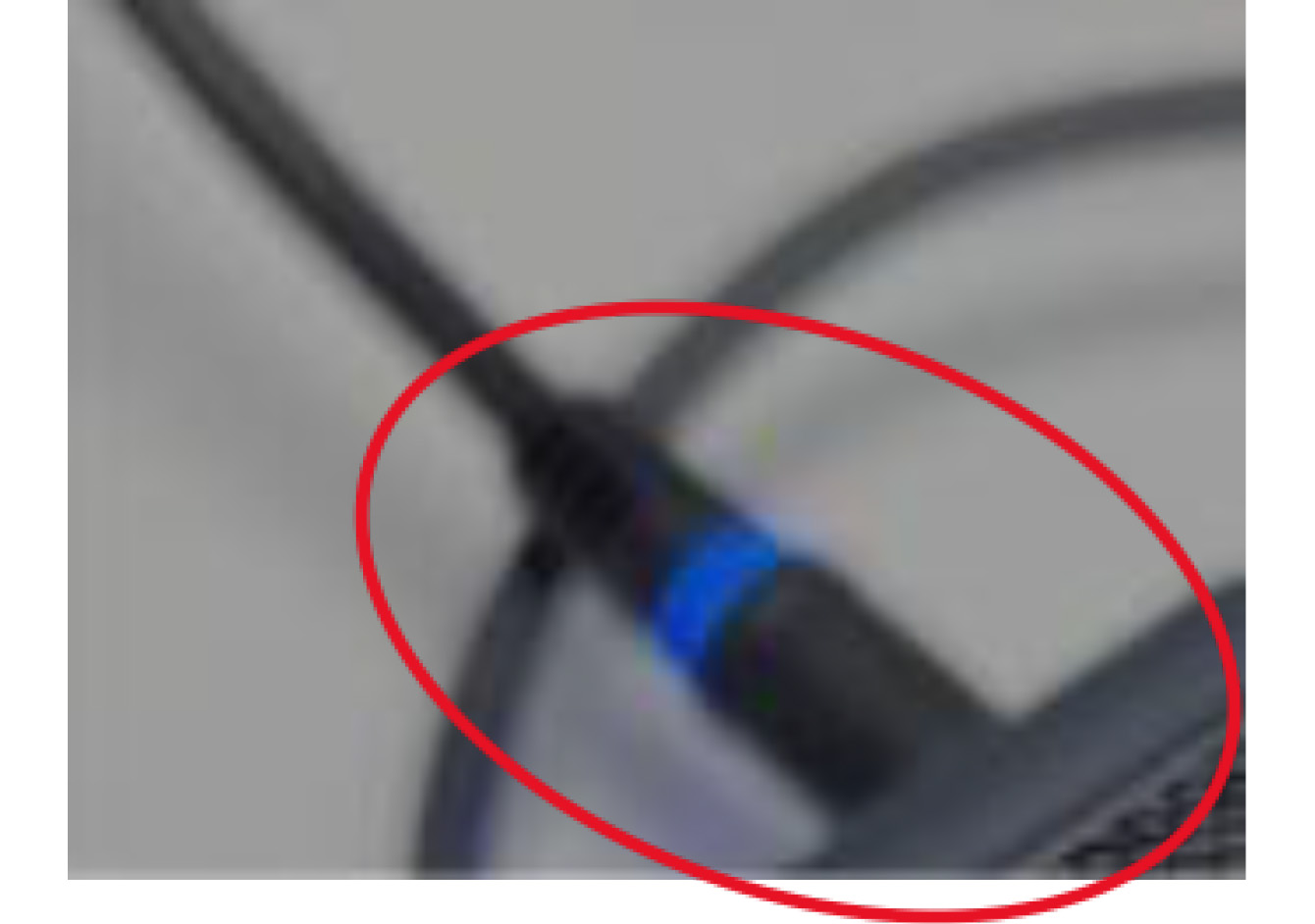 Try plugging the USB-C cable from the bar directly into your computer. Replace in the hub afterwards.