Meeting Room AV User Guide
Connection Guide when using Teams or joining a Teams meeting:
1. Overview
Microsoft Teams Rooms and Teams Casting make it easy to share your content and collaborate in meeting spaces without needing cables or complicated setup.
Teams Rooms: Special meeting room setups with cameras, microphones, speakers, and a screen(s) — all running Teams.
Teams Casting: Allows you to wirelessly share your screen or start a Teams meeting from your personal device to a Teams Room system.
2. Using Teams Casting
This can be used to set-up an ad-hoc session without a pre-booked meeting and when you have external guests (non-SMR colleagues) who need to present.
How to Cast to a Teams Room
Make sure you’re on one of the SMR hosted Wi-Fi connections
Open Microsoft Teams on your laptop or mobile device.
Find the Cast option:
On a laptop: Click the Cast icon in the Teams menu bar (usually top right next to your profile picture (…) and select “cast” from the drop-down menu).

On a mobile: Tap More (…) and select Cast.
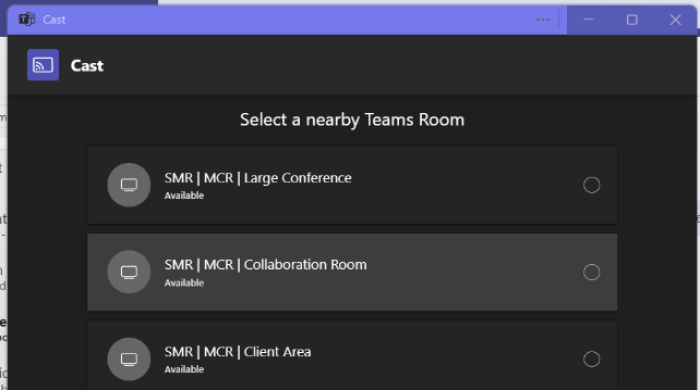
Select the room you want to cast to from the list and click “next”. (picture below shows an example of the room selection list)
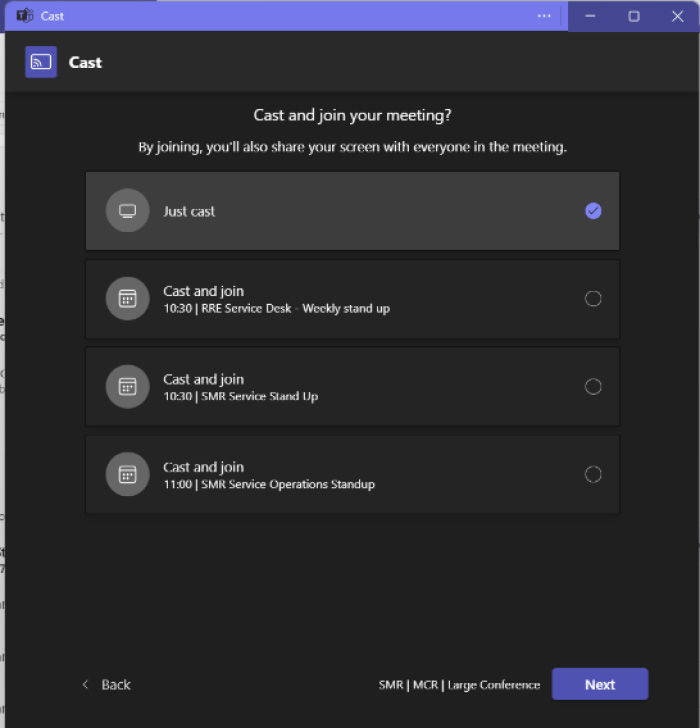
Choose what you want to do:
“Just Cast” - Share your screen (for presentations, documents, etc.).
“Cast and Join” - Join a meeting from the room (your device becomes your controller; the room handles the audio/video).
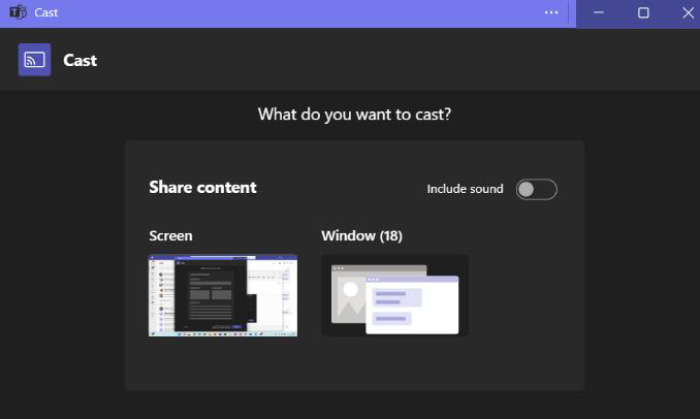
You can also choose whether to share your entire screen or a single application. Note: if the content you want to share has any audio, ensure you click the slider to “include sound”
When you’re finished, click Stop Casting in Teams.
3. Using a Teams Room for a Meeting
Joining a Scheduled Meeting
Go to the meeting room before your meeting starts.
On the touch panel or console in the room, find your meeting listed.
Tap Join to start.
Use the room’s microphone, speakers, and camera for the meeting.
Note: You can also join from your own device using “Join and Add Room” in Teams, which links the room system with your personal device for chat and file sharing.
Starting an Ad-hoc Teams Meeting
On the room console, tap Meet Now.
Invite participants by typing their names or emails.
Start your meeting instantly with the room’s equipment.
4. Best Practices
Arrive early to check the tech before your meeting.
Mute your device when using the room’s microphone to avoid echo.
Use ‘Add Room’ instead of joining separately to prevent audio feedback.
Share files in Teams chat for reference after the meeting — casting is for live display only.
Troubleshooting Guidance:
Problem? | Solution |
|---|---|
No Display? | Check that the display is switched on and not in standby. Press the red standby button on the remote control
Check that the "Teams Room" input is selected. Press the INPUT button until the display appears. |
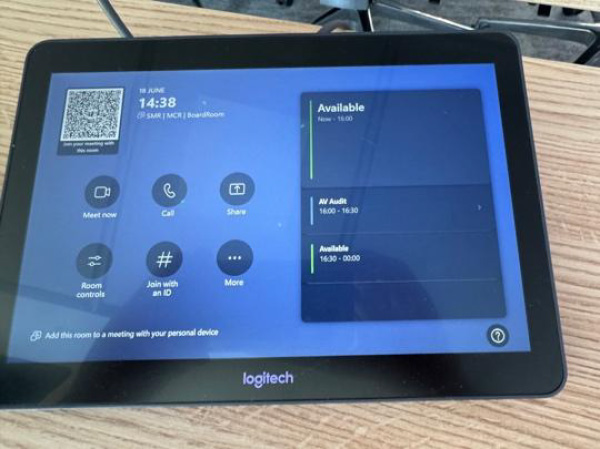
Not sure what the Teams Touch Pannel looks like? | Here is a picture, however, please call IT if you are having any issues!
|
Room Audio or Visual issues? | Call the service desk and let us know so that we can dispatch an engineer |
Need Some Help? | |
Select “IT Service Desk” from your laptop Start Menu Or Call 01782916851 (scan the QR code below to save this number)
| |